
 By Admin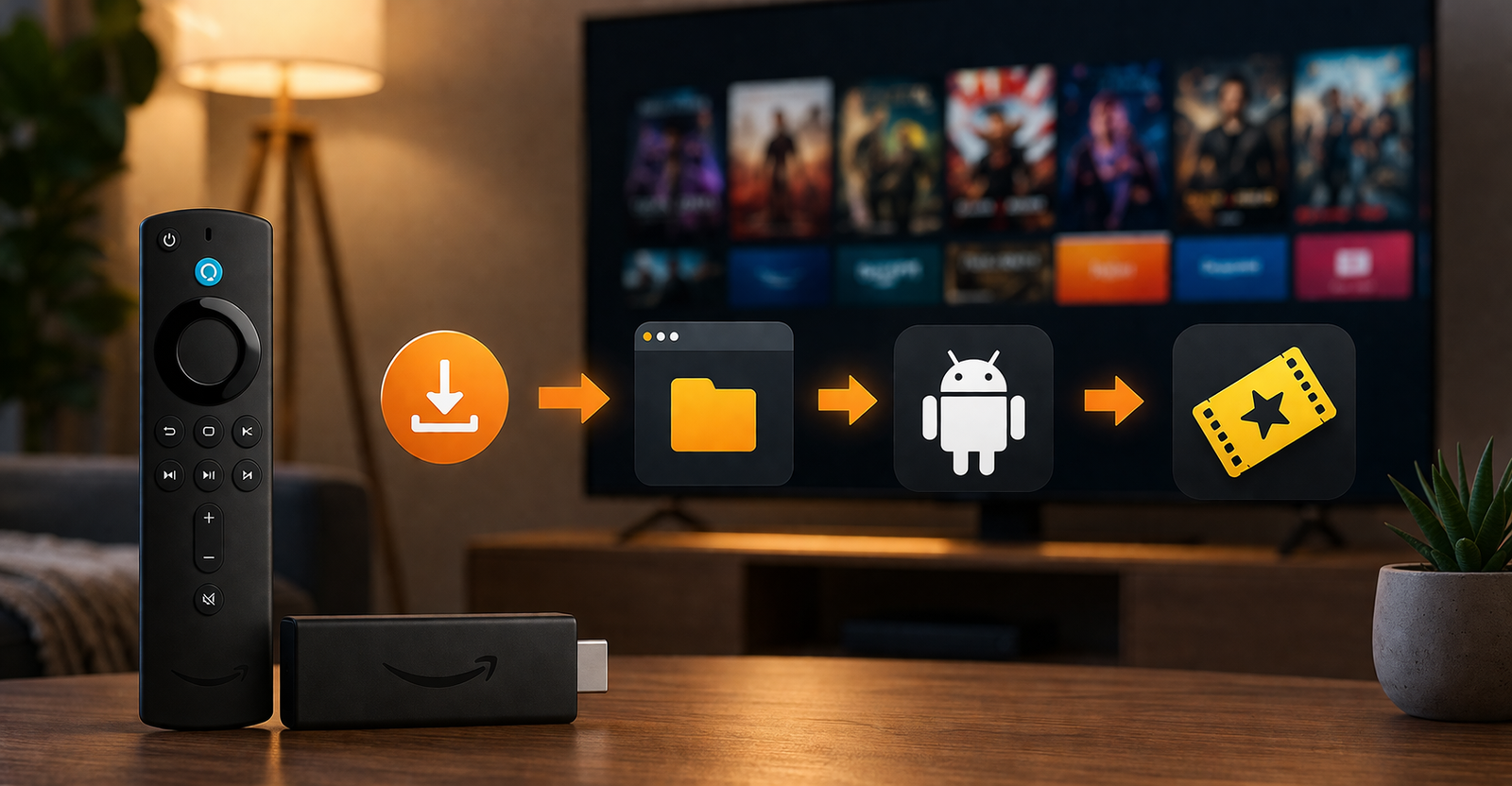
If you are trying to install Cinema HD on Firestick, you are probably looking for a simple way to watch movies and TV shows from your Amazon Fire TV Stick. The app has been popular among many Firestick users for years because of its clean layout, large content-style interface, and easy navigation.
But in 2026, the topic needs a little more care.
Cinema HD is not available in the official Amazon Appstore. That means it cannot be installed like Netflix, Prime Video, Hulu, Tubi, or Pluto TV. Instead, users usually install it as a third-party APK file, which is also called sideloading.
That does not automatically mean every third-party app is unsafe, but it does mean you need to be more careful. A third-party Android APK can create privacy, security, and legal concerns if it comes from an unknown or unreliable source. Some users also report that Cinema HD does not work as smoothly as it once did, with errors such as No Links Found, Support Terminated, app crashes, and buffering issues.
This guide explains what you should know before installing Cinema HD on Firestick, how the setup process usually works, what safety steps matter, and what to do if the app is not working.
Cinema HD is a third-party streaming-style app designed for Android-based devices, including Firestick, Fire TV Stick 4K, Fire TV Cube, Android TV boxes, and some smartphones. It became popular because it has a simple interface where users can browse movies, TV shows, and on-demand content.
Unlike official apps from the Amazon Appstore, Cinema HD APK is not reviewed or distributed directly by Amazon. This is why users need to install it manually through a tool such as the Downloader app.
The important thing to understand is that Cinema HD does not work like a normal licensed streaming platform. Official services such as Prime Video, Netflix, Apple TV, Hulu, Tubi, and Freevee have clear content agreements. With third-party APKs, users need to be careful about what content they access and whether it is legally available in their region.
No, Cinema HD is not available in the official Amazon Appstore.
This is why you will not find it by using the normal search option on your Firestick Home screen. If you search for Cinema HD inside the Amazon app store, you may find unrelated apps, but not the actual Cinema HD APK that many online guides talk about.
The reason is simple: Cinema HD is a third-party app. Amazon usually lists apps that meet its store rules, developer requirements, and content policies. Since Cinema HD is not officially listed there, users have to sideload it manually.
That is also why safety matters. When an app is not from the official store, you need to check the source carefully, avoid suspicious downloads, and understand the risks before installing anything on your device.
The safe answer is: it depends on the source, the version, and how you use it.
Installing any third-party APK file on a Firestick carries some risk. The main concern is not just the app name, but the file you download. Fake APKs, modified versions, and unknown download pages can contain malware, unwanted ads, tracking tools, or broken files.
Before you install Cinema HD APK, keep these points in mind:
Make sure your Firestick has enough storage space. Low storage can cause installation errors, freezing, and app crashes.
Avoid random APK websites that look spammy or force extra downloads.
Do not install apps that ask for permissions that do not make sense.
Use only content that you are legally allowed to access.
Keep your Fire TV software updated.
Delete the APK installer file after installation to free up space.
If privacy is important to you, review your network and device settings before using third-party apps.
A lot of users also mention using a VPN with third-party streaming apps. A VPN can hide your IP address from some network-level tracking, but it does not make illegal streaming legal. It also does not guarantee that an unsafe APK becomes safe. Think of it as a privacy tool, not a magic protection button.
Before starting the setup, it is worth checking your device first. Many installation problems happen because the Firestick is full, outdated, or blocked from installing apps from unknown sources.
Go through these quick checks:
Make sure your Amazon Fire TV Stick is connected to a stable Wi-Fi connection.
Restart your Firestick if it has been running slowly.
Check your storage by going to Settings, then My Fire TV, then storage-related options.
Uninstall apps you no longer use.
Update your Fire TV software if an update is available.
Install the official Downloader app from the Amazon Appstore.
These steps may sound basic, but they can prevent common errors such as app not installed, parse error, failed downloads, and app crashes after installation.
Since Cinema HD is not in the Amazon Appstore, most users first install the Downloader app. This app is available officially through Amazon and is commonly used to access APK files.
Here is the usual process:
Go to the Firestick Home screen.
Open the search option.
Type Downloader.
Select the Downloader app from the results.
Click install or download.
Wait for the app to finish installing.
Once Downloader is installed, do not open random links immediately. The next step is to allow your device to install apps through Downloader.
To install a third-party APK file, you need to allow Downloader to install unknown apps.
On most newer Fire TV devices, you can do this by going to:
Settings
My Fire TV
Developer Options
Install Unknown Apps
Turn it on for Downloader
On some devices, Developer Options may not appear right away. If it is missing, go to Settings, then My Fire TV, then About. Select your Fire TV device name several times until developer options are enabled.
This menu can look slightly different depending on your Firestick model and software version. For example, Fire TV Stick 4K, older Firestick models, and Fire TV Cube may not show the exact same layout.
Once Downloader is installed and Install Unknown Apps is enabled, the installation process usually works like this:
Open the Downloader app.
Use the URL field to enter a trusted source for the Cinema HD APK.
Download the APK file.
Wait for the download to complete.
Select install when the installation window appears.
After installation, choose done or open.
Delete the downloaded APK file when asked, because the installer file is no longer needed.
Go back to the Firestick Home screen.
Open your app library and find Cinema HD.
For safety, avoid APK files that come with strange names, forced redirects, extra download buttons, or unclear version labels. Some pages may advertise Cinema HD MOD APK or modified versions. These can be riskier than standard APK files because you do not know what has been changed inside the app.
Also remember that installing the app is only one part of the process. How you use it matters. Stick to authorized, legal content and avoid anything that may violate copyright rules in your country.
Many users search for install Cinema HD on Firestick because they remember the app from older guides. But in 2026, some users report that Cinema HD is not as reliable as before.
Common issues include:
No Links Found
Support Terminated
Cinema HD not opening
Cinema HD keeps crashing
Cinema HD buffering
App not installed
Failed to connect to API
Invalid APK link
Outdated APK file
If Cinema HD shows Support Terminated, it may mean the version you installed is no longer supported or the app’s link sources are not working properly. If you see No Links Found, the app may not be able to fetch working streaming links.
This is one reason your article should not promise that Cinema HD will always work. Third-party apps can change quickly. A version that works for one user may not work for another.
If Cinema HD APK is not installing, there are several possible reasons.
The most common one is that Install Unknown Apps is not enabled for Downloader. Go back to Settings, open My Fire TV, find Developer Options, and make sure Downloader is allowed.
Another common issue is low storage. Firestick devices do not have unlimited space. If your device is full, the APK may download but fail during installation. Delete unused apps, clear cache, and restart the device before trying again.
A third issue is a bad or outdated APK file. If the file is broken, your Firestick may show a parse error or app not installed message. In that case, do not keep trying the same file again and again. Remove it and avoid suspicious sources.
A weak internet connection can also interrupt the download. If the APK file does not fully download, the installation may fail.
Buffering is one of the most common complaints with third-party streaming apps. If Cinema HD buffers on your Firestick, the issue may not be your device alone. It can also be caused by weak links, overloaded sources, slow Wi-Fi, or app problems.
You can try these simple fixes:
Clear the Cinema HD cache from your Fire TV settings.
Restart your Firestick.
Move your router closer to the device.
Use a stronger Wi-Fi connection.
Close background apps.
Delete unused apps to free up storage.
Check whether your Fire TV software needs an update.
Some users also connect external players such as MX Player or VLC Player. These players may improve playback for certain files, but they will not fix every problem. If the link itself is weak or broken, an external player will not make it reliable.
Many older Cinema HD guides mention Real-Debrid, Trakt TV, MX Player, VLC Player, and CSPlayer.
Real-Debrid is often used to access higher-quality cached links in supported apps. Trakt TV is used to track watch history, favorites, and watched episodes across supported platforms. MX Player and VLC Player are external video players that can sometimes offer smoother playback than the built-in player.
These tools may improve the user experience, but they also add more settings and more accounts to manage. Before connecting any outside service, check its privacy policy, account settings, and whether it fits your comfort level.
This is one of the most important questions.
Installing an APK is not automatically illegal, but streaming copyrighted movies or TV shows from unauthorized sources can create legal problems. The legality depends on what content you access, where it comes from, and the laws in your country.
The safest approach is simple: use official apps and licensed content whenever possible. If you install any third-party app, do not use it to watch copyrighted content that you do not have permission to access.
For many users, legal alternatives are easier, safer, and more stable in the long run.
If Cinema HD does not work or you do not want to deal with APK risks, there are many safer apps for Firestick.
You can try:
Prime Video
Netflix
Hulu
Apple TV
Disney Plus
Tubi
Pluto TV
Freevee
The Roku Channel
Plex
YouTube
Stremio with official and legal add-ons
Free legal apps like Tubi, Pluto TV, and Freevee are especially useful for users who want movies and TV shows without paying for another subscription. They are ad-supported, but they are available through official stores and are much safer than random APK downloads.
If your goal is simply to test a third-party app and you understand the risks, you can install Cinema HD on Firestick through sideloading. But if you want a stable, safe, and legal streaming setup, official apps are usually the better choice.
Cinema HD may not work perfectly in 2026. Some users may see No Links Found, Support Terminated, buffering, or installation errors. Since it is not an official Amazon Appstore app, there is no guarantee of long-term support, safe updates, or consistent performance.
The best approach is to be careful. Do not download random APK files, do not ignore security warnings, and do not use third-party apps to access content that is not legally available to you.
Learning how to install Cinema HD on Firestick safely in 2026 is mostly about understanding the risks before you start. The process usually involves the Downloader app, Developer Options, Install Unknown Apps, and a third-party APK file. But the bigger question is whether the app is still reliable and whether it is the best choice for your streaming needs.
For users who still want to try Cinema HD, safety should come first. Keep your Firestick updated, avoid suspicious APK sources, watch your storage, clear cache when needed, and use only legal content. For users who want a simpler path, official apps like Tubi, Pluto TV, Freevee, Prime Video, and Netflix offer a cleaner and safer experience without the same installation risks.